AI Multiple Video Face Swap
Swap 2–4 faces in one video online with AI. Upload an MP4 clip and one face photo per person, matched left to right. No watermark, nothing to install.
- MP4 input · up to 50 MB
- Standard · 4–30 s · 42 credits/s
- 480p-class MP4, no audio
- Sign-in required
Upload a video
Upload target faces
Add 2–4 face photos, matching people left to right as they first appear.
Whole clip · 480p output · No audio
Video result

Example run through this tool with an AI-generated face. Your result appears here after generation.
For a closer likeness
- Use a clip where the face is large, well lit and not covered.
- Pick a sharp, front-facing face photo with the eyes open.
- Test a short clip first, then run the longer one.
Multiple face swap for video
A multiple video face swap, also called a group video face swap, replaces several faces in one clip using a different portrait for each person.
Assign each face from left to right and check the Standard estimate before you generate. We store the video inputs and results privately with your account and send inputs to a video AI provider to make the edit.
- 2–4 faces per clip
- Private cloud storage
- Credits back on failure
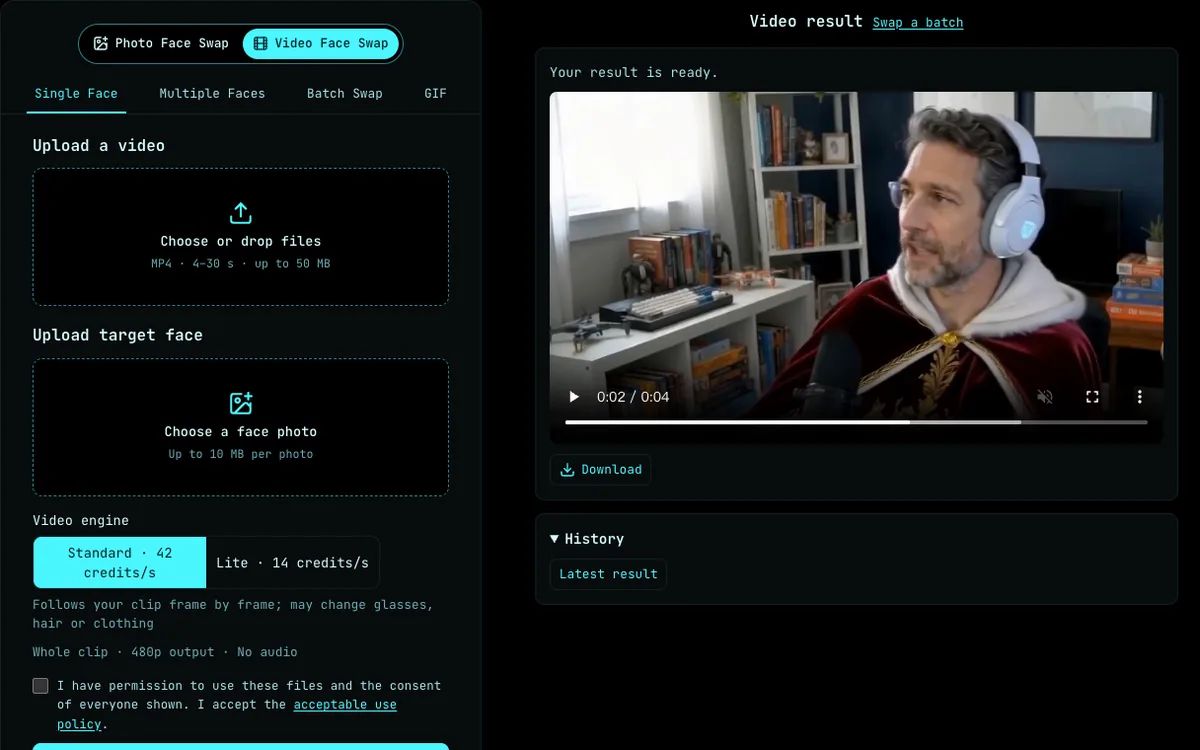
How to swap faces in a group clip in 4 steps
Add your clip
Under Upload a video, use Choose or drop files to add an MP4 clip. Check the length and credit estimate below each file name.
Assign the faces
Under Upload target faces, fill Face 1 and Face 2 from left to right as people first appear. Select Add face for up to 4 slots.
Choose an engine and generate
Under Video engine, use Standard. Use Sign in to start, tick the consent box and select Generate.
Play and save your result
Check progress in Video result. Play the result and select Download. Open History to find a previous result in this browser.
Pick your swap
Choose by file type, the number of faces you want to replace, or how many files you have.
- PhotoPhoto Face SwapOne face in one photo.
- PhotoMultiple Face Swap2–4 faces in one group photo.
- PhotoBatch Face SwapOne face across up to 10 photos.
- LiveLive Face SwapSwap a face live on your webcam.
- VideoVideo Face SwapOne face in one video clip.
- VideoMultiple Video Face Swap2–4 faces in one clip.
- VideoBatch Video Face SwapOne face across up to 5 clips.
- GIFGIF Face SwapOne face in an animated GIF.
See the length and cost before you generate
Once you add a clip, the editor shows how long the input is and how many credits the job will use.
- Length appears below each file name.
- Cost uses the engine’s per-second rate and rounds up to a whole billing second, up to the engine limit.
- Free first result uses Lite for up to 5 seconds, once per account. Use the trial in Video Face Swap or GIF Face Swap.
- Balance is checked before you generate. If you’re short on credits, select Add credits.
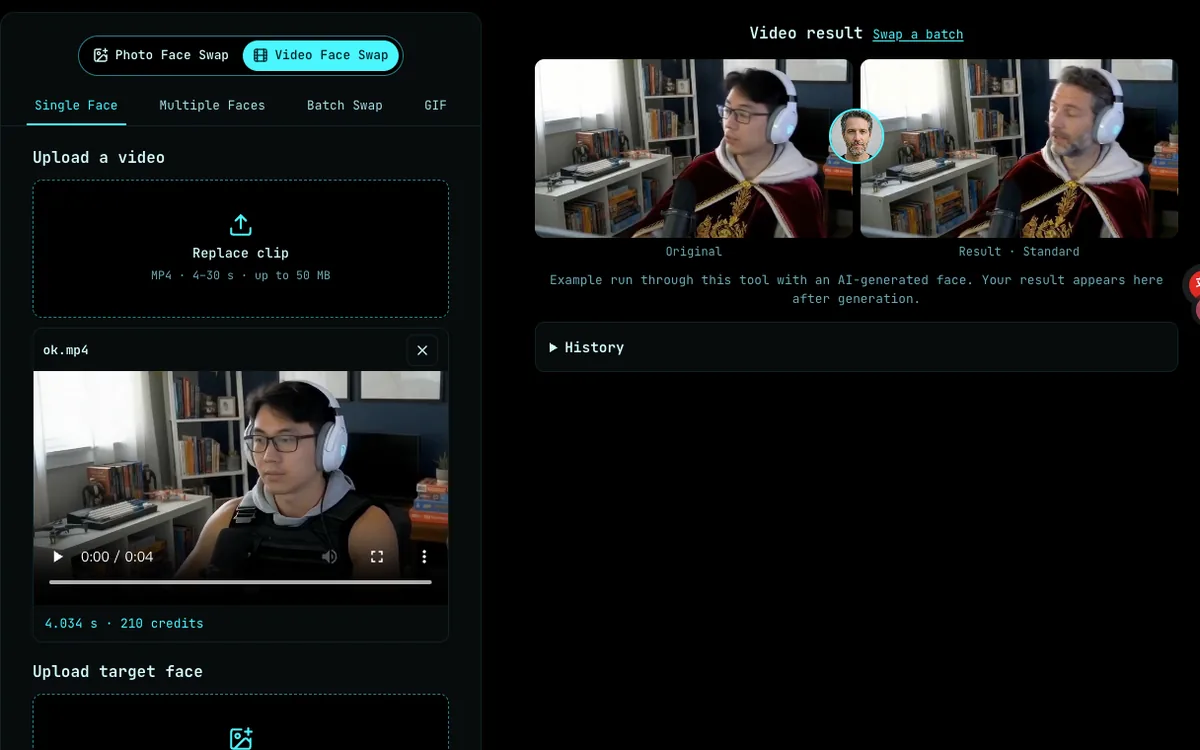
Two engines: Standard and Lite
Group clips use Standard. Here’s how it compares with Lite in the single-face editors.
- Standard follows the clip frame by frame. It takes up to 30 s and costs 42 credits/s.
- Lite takes up to 15 s and costs 14 credits/s.
- From our own test runs on 2026-11-25 Standard removed glasses and sometimes changed hair or clothing. Lite kept glasses and clothing more often, and some opening frames still showed the original face.
- Which to pick For a lower-cost single-face swap, try Lite. Use Standard for longer clips or several faces in a group clip.
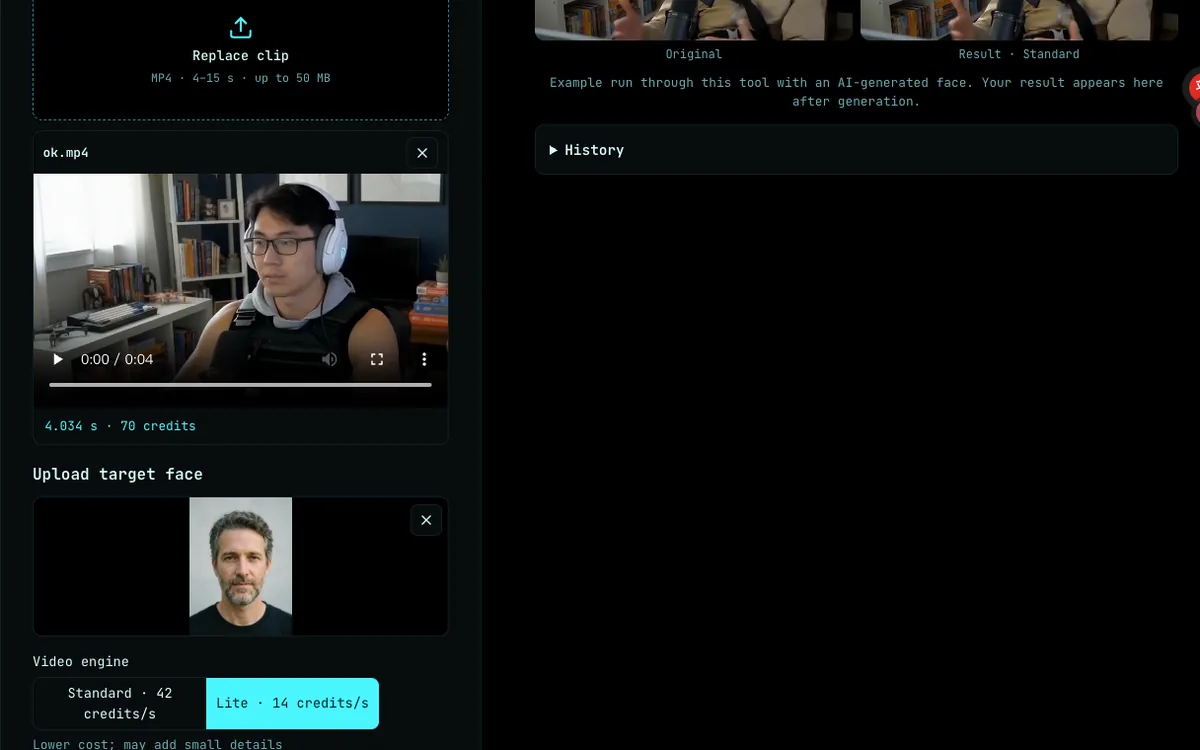
| Setting | Standard | Lite |
|---|---|---|
| Clip length per engine | 4–30 s | 4–15 s |
| Credits per second | 42 | 14 |
| Faces per clip in this editor | 4 | Standard only |
| From our own test runs on 2026-11-25 | Followed the clip frame by frame and removed glasses. Hair and clothing sometimes changed toward the face photo. | Kept glasses and clothing more often in these runs. It can add small details, and the first frames of the result can still show the original face. |
Use Standard for 2–4 faces in a single clip.
Play, download or delete the result
Play the result in the editor to check the face, hair, glasses and clothing before you save or share it.
- Download saves the result (480p-class MP4, no audio).
- History shows your saved results when you sign in from the same browser.
- Delete files removes the uploaded clip, face photos and result from our storage.
- Credits back on failure applies automatically to failed jobs.
Several people, several clips, or a GIF
Make a reaction GIF, try a fictional role in a short clip, or edit several takes with the same face.
- Multiple Video Face Swap replaces 2–4 faces in one MP4 using Standard. Assign a portrait per person from left to right as they first appear.
- Batch Video Face Swap applies one reference portrait to up to 5 clips, with a separate result and charge for each clip.
- GIF Face Swap swaps one face in an animated GIF with a loop up to 15 s, then exports a GIF or silent MP4.
Use clips you have rights to edit and get permission from everyone shown. Read the acceptable use policy before sharing.
What happens to your files
The editor sends your clip and face photos for processing. Your uploads and result are linked to your account.
Private cloud storage
We store your uploaded clips, face photos and results in private cloud storage tied to your account.
Video processing
A third-party AI video provider receives the clip and face photos through links that expire after 1 hour.
Model training
We do not use your photos, clips or results to train AI models, and we do not publish them.
File removal
Open History and choose Delete files on a result to remove your inputs and result from our storage. To remove everything, email support@livefaceswap.co.
Limits and price
The lowest-priced pack is $10.00 for 1,000 credits. One-time credit packs are purchased once and do not renew. Credits never expire, so you can spend them whenever you like.
These are credit values at the $10.00 top-up price for 1,000 credits. We round your clip up to a whole billing second, up to the engine limit.
Lite prices apply in the single and batch video editors. This editor uses Standard.
| Clip length | Standard | Lite |
|---|---|---|
| 5 s | 210 credits $2.10 | 70 credits $0.70 |
| 10 s | 420 credits $4.20 | 140 credits $1.40 |
| 30 s | 1,260 credits $12.60 | Over 15 s limit |
New accounts get 10 credits. That does not cover a video job. The shortest MP4 job is 4 s and costs at least 56 credits. In this editor, the minimum is 168 credits.
Your first video or GIF result is free: Lite engine, up to 5 seconds, one face, once per account. Your first photo result is free too. See credit packs.
Questions about multiple video face swap
What do I need to swap a face in a video?
Start with an MP4 clip and 2 to 4 replacement face photos. Use footage and photos you have permission to edit, and get consent from everyone shown.
How do I swap faces in a video?
Add your files under Upload a video and Upload target faces. Under Video engine, use Standard, confirm consent and select Generate after signing in. Play the result and choose Download.
Is it free, and how much does a 10-second clip cost?
The free first result applies to the single-face video and GIF editors, not this one. After that the minimum in this editor is 168 credits. For a 10-second clip, Standard costs 420 credits ($4.20) using the $10.00 top-up price.
Do I need to sign up?
Yes. If you’re signed out, choose Sign in to start and sign in or create an account before using Generate.
Does the result have a watermark?
No. We save the video the AI provider returns and add no watermark of our own. The results from our own runs on 2026-11-25 had no watermark or logo in the frame.
What are the video upload limits?
Upload a video accepts MP4 files up to 50 MB each for Standard. Standard takes 4–30 s clips.
What quality and format can I download?
Download saves a 480p-class MP4, no audio. Play the result in the editor before saving it.
How long does the video face swap take?
Our 2026-11-25 runs took about 1.5 to 7 minutes for 4–6 s clips. Video result shows the job status while you wait.
Will it keep glasses, hair and clothing?
In our runs, Standard removed glasses and sometimes changed hair or clothing toward the photo. Play the result and check each person before downloading.
Do I get credits back if a swap fails or looks wrong?
A failed job automatically returns its credits. A completed job uses the quoted credits even if you prefer the original, so check the preview before sharing.
How do I assign faces in a group clip?
Fill Face 1 through Face 4 as needed, ordered from left to right as people first appear in the clip. Standard uses the filled slots, and the preview has no click-to-select control.
Can I upload an MOV file?
The Upload a video box accepts MP4. Export your MOV as MP4, then use Choose or drop files to add the exported clip.
Can I use the editor on my phone?
On a phone, use a browser that can play MP4 and choose your files under Upload a video and Upload target faces. Play the result in the editor, then use Download to save it through your browser.
Where do my files go?
The uploaded clip, face photos and result are stored privately with your account. The video AI provider receives the inputs through links that expire after 1 hour, and History keeps result references in this browser. Read the privacy policy
Can I use the result commercially?
See the terms of service before using a result commercially. The terms say you are responsible for the rights to the images you upload and for how you use the output. Read the terms of service
What is the best online video face swap tool for my clip?
Check whether it takes your own clip, publishes limits and per-second prices, returns credits for failures, changes more than the face, and explains where files go. Here you can upload your own short MP4, see limits and rates before Generate, and get credits back on failure. Expect a 480p-class MP4, no audio; the engine can change hair, glasses or clothing.